
There are a lot of issues to be found with my Thinkpad t460s. Actually, it's not that bad, but because I plan to use this thing until it inevitably dies or explodes on me, I want to prolong its lifespan as much as I can through simple upgrades that I can do at home.
If I happen to fuck something up and kill this computer, then so be it. I absolutely refuse to bring it to a professional for... reasons.
Either way, I hope you enjoy seeing me wreck my beloved computer in various ways. If you have any advice or would like to call me stupid for doing something wrong, please feel free to do so in the comments I have added below.
ACTUAL specs
Intel Core i7-6600U CPU 2.6gHz
Audio speakers replacement / COMING SOON (PROBABLY): keyboard replacement
The internal audio speakers of this t460s has always been faulty, ever since the day I got the computer brand new. Play anything at higher than volume 50 and it will emit this horrible crackling, distorted sound. I have tried pretty much any methods the internet had offered: updating/reinstalling the audio drivers, changing the compatible audio format, updating my bios,... Well, all except actually opening the computer up and see what's wrong. Admittedly, what I should have searched up was "Thinkpad t460s audio crackling", not just "computer audio crackling", because this seems to be a common problem that people with a t460s run into.
Either way, I gave up on it and just decided to have my headphones plugged in at all times. That probably did a lot of damage to my eardrums.
Recently, after watching a video of a guy replacing the speakers for the same laptop I own, I had a moment of realization: "Ohhh... So that's what's PROBABLY wrong with it.". I went ahead and bought a third-party replacement for the audio speakers online for the price of $10. You can probably get it for cheaper, but I decided to go with the $10 option cause there were more reviews for the product.
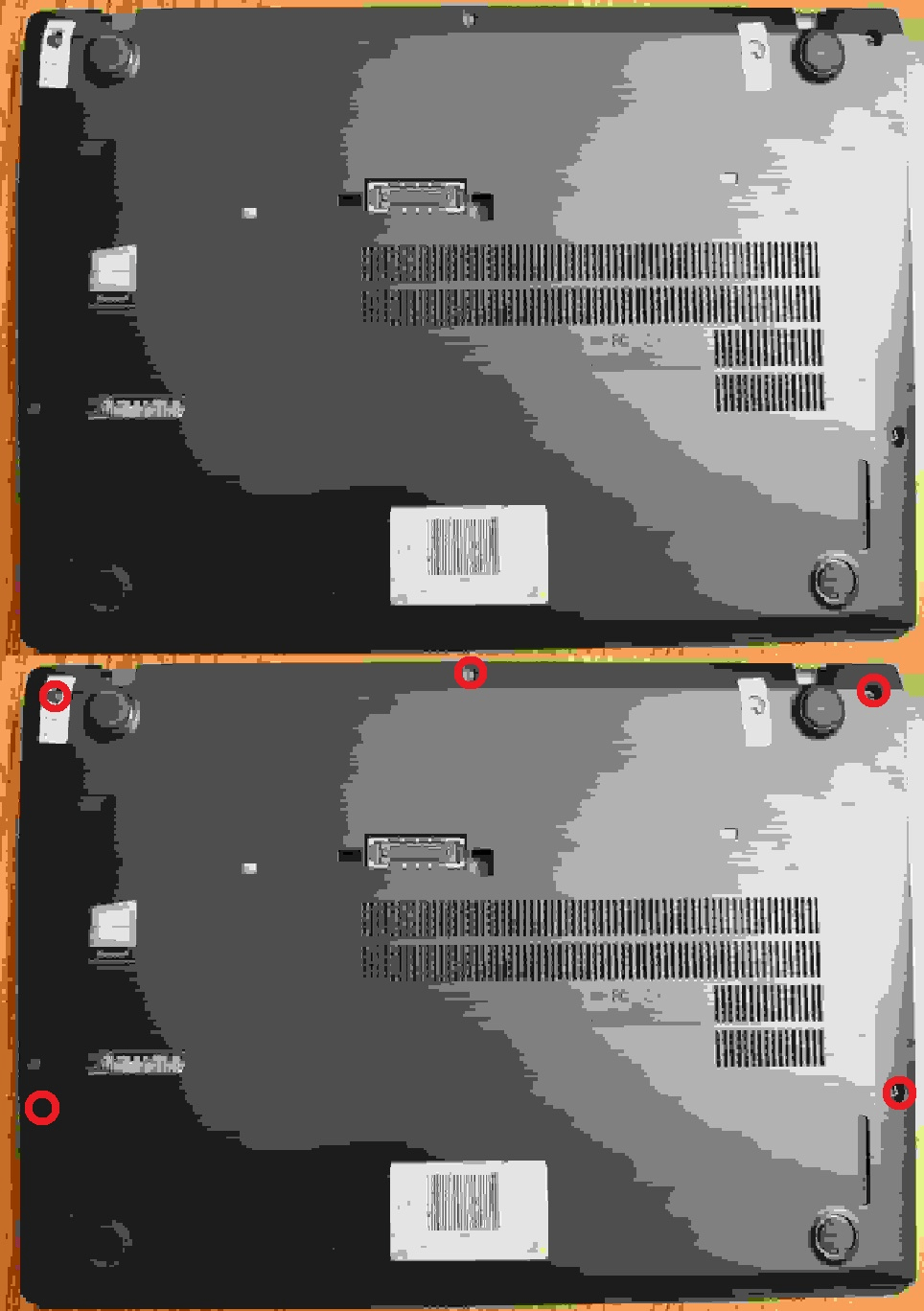
The procedure is fairly simple. First, I loosened these 5 screws on the back of the laptop. They won't come off, but there will be a click when it's undone. Taking off the cover is easy, you hold it from the top (where there are 3 screws) and slide it downwards.
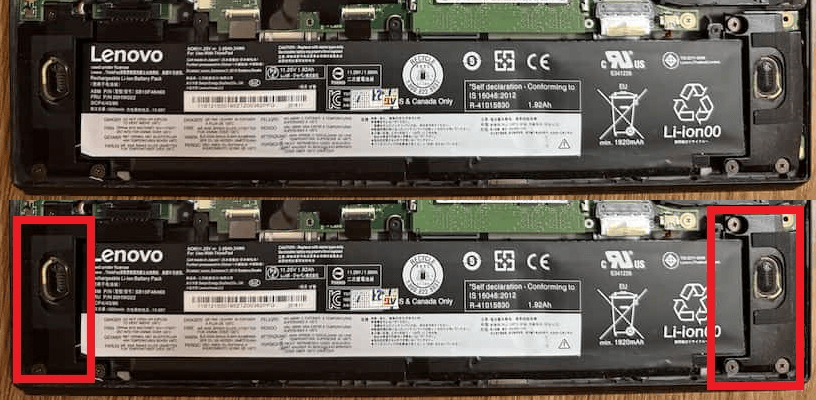
Our target are these two guys. You'll have to remove the battery before taking the speakers off, not because it could potentially zap you, but because the cables connecting the two of them is laid under it. After that's done, I removed the 3 screws holding the each of the speakers down, as well as disconnecting the connector.
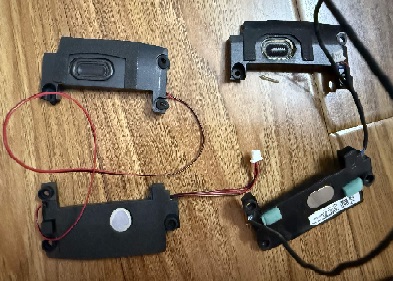
The old speakers were in pretty bad shape, no wonder the audio was horrid. The plastic covers? protectors? on the speakers were deteriorating, parts of them were also gone. I have no idea what caused this, and whether or not they came with the computer in this state. Either way, installing the new speakers was simple. Just connect them to the board, tighten the screws and it's done. Easy peasy. The surgery was a success!

It's weird listening to anything using this computer without my earphones in. It DOES feel liberating though. The quality isn't exactly the best, but it's better than what I had to put up with before. I'll see how these new replacements hold out.
Something that still puzzles me is why the original speakers were so damaged. Surely plastic (or whatever the covers were made of) can't break down that fast, right? Or does the dust have something to do with it? Cause the inside of my computer sure had a lot of that. I'll let my future self clean that up later.
Comments